

FlareMail lets you organize mail the way you work: create color-coded labels, then build rules that label, move, archive, star, or trash messages automatically.
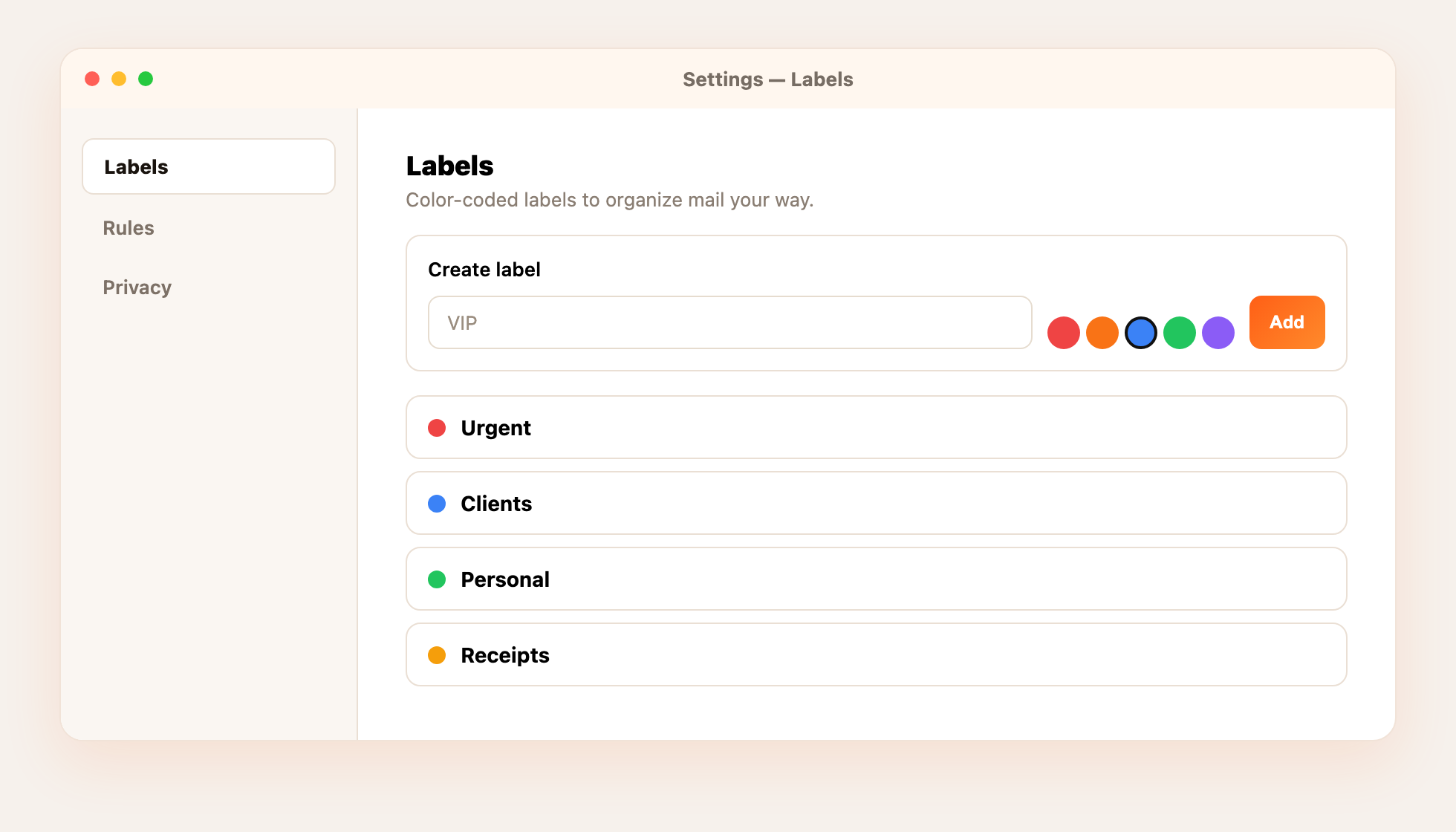
Create labels
- Open LabelsGo to Settings (⌘ ,) → Labels.
- Name and colorType a label name, pick a color, and click Add.
- Use it in the inboxApply labels from the message toolbar or let a rule add them for you.
Build a filter rule
Open Settings → Rules and create a rule with a match and an action. Matches can look at From, To, Subject, or Body — with contains, equals, starts with, ends with, or regex. Actions include move, add label, archive, spam, trash, star, mark read, forward, and more.
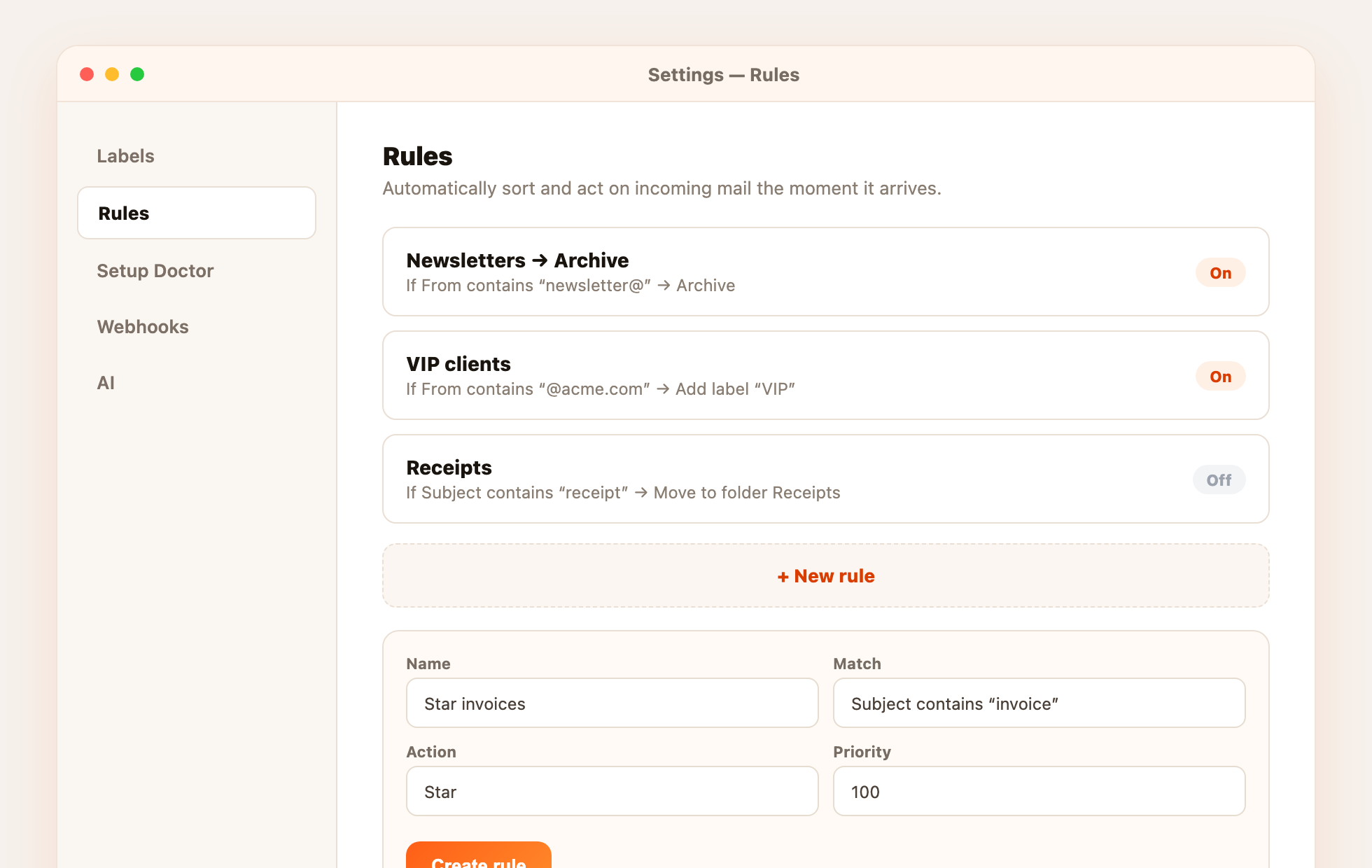
- Priority — lower numbers run first when several rules could match.
- Stop processing — optionally halt further rules after this one fires.
- Enable / disable — pause a rule without deleting it.